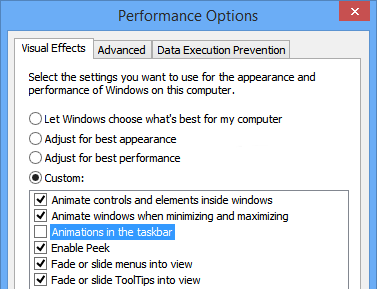
In Windows Vista and Windows 7, whenever you want to turn Aero process ON or OFF to enable or disable Aero glass effect, you have to do it either from Desktop Properties or from System properties. But did you know there is a very easy shortcut to do it within seconds?
Here are 2 commands to turn Aero ON / OFF which are used by Windows Vista and 7:
Command to Turn Aero ON: Rundll32 dwmApi #102
Alternative command to Turn Aero ON: sc start uxsms
Command to Turn Aero OFF: Rundll32 dwmApi #104
Alternative command to Turn Aero OFF: sc stop uxsms
You can give the commands in RUN dialog box or Start Menu Searchbox. You can also create their shortcuts on Desktop or Quick Launch or wherever you want. It can become quite handy in lots of situations like a software has disabled Aero because it was not compatible with Aero or if you are running out of battery in your laptop, etc.
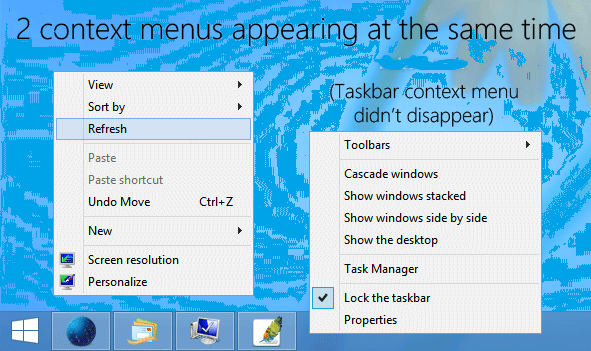
You can also add these commands in Desktop context menu or My Computer context menu. e.g. when you'll right-click on Desktop or My Computer icon, you'll find the shortcuts of "Aero ON" and "Aero OFF" there.
Following is a step-by-step tutorial to Add "Aero ON" and "Aero OFF" options in Desktop and My Computer Context Menu:
Add "Aero ON" and "Aero OFF" in Desktop Context Menu:

1. Type regedit in RUN dialog box and press Enter. Now go to:
HKEY_CLASSES_ROOT\Directory\Background\shell
2. Right-click on the "Shell" key and select "New -> Key".
3. Give it name Aero ON.
4. Now create another key under "Aero ON" with the name "command" and in right-side pane set value of "Default" to:
Rundll32 dwmApi #102
If the above command doesn't work for you, you can use following command as value:
sc start uxsms
5. Now repeat steps 2-4 to add "Aero OFF" option, i.e. Right-click on the "Shell" key and select"New -> Key".
6. Give it name Aero OFF.
7. Now create another key under "Aero OFF" with the name "command" and in right-side pane set value of "Default" to:
Rundll32 dwmApi #104
If the above command doesn't work for you, you can use following command as value:
sc stop uxsms
8. That's it. Now you'll get both "Aero ON" and "Aero OFF" options in Desktop Context Menu.
Add "Aero ON" and "Aero OFF" in My Computer Context Menu:

1. Type regedit in RUN dialog box and press Enter. Now go to:
HKEY_CLASSES_ROOT\CLSID\{20D04FE0-3AEA-1069-A2D8-08002B30309D}\shell
2. Right-click on the "Shell" key and select "New -> Key".
3. Give it name Aero ON.
4. Now create another key under "Aero ON" with the name "command" and in right-side pane set value of "Default" to:
Rundll32 dwmApi #102
If the above command doesn't work for you, you can use following command as value:
sc start uxsms
5. Now repeat steps 2-4 to add "Aero OFF" option, i.e. Right-click on the "Shell" key and select"New -> Key".
6. Give it name Aero OFF.
7. Now create another key under "Aero OFF" with the name "command" and in right-side pane set value of "Default" to:
Rundll32 dwmApi #104
If the above command doesn't work for you, you can use following command as value:
sc stop uxsms
8. That's it. Now you'll get both "Aero ON" and "Aero OFF" options in My Computer Context Menu.
NOTE: There is also another similar command "Rundll32 dwmApi #105" which is used to run "Flip 3D". You can also add it in My Computer or desktop Context Menu by following the above mentioned steps.
------------------------------------------------------------------------------------
Your
business needs pertaining to cloud backup service, tech support and CRM will be
satiated in the best way at Techvedic. Just a click and we are at your
doorstep.
About Techvedic: http://en.wikipedia.org/wiki/Techvedic
Get in touch
with Techvedic on Social Media:
Techvedic Facebook
Page: https://www.facebook.com/techvedic
Techvedic Twitter:
https://twitter.com/techvedic
Techvedic Google
Plus Page:
https://plus.google.com/+TechvedicInc/posts
Techvedic YouTube:
https://www.youtube.com/user/Techvedic
Techvedic LinkedIn
Profile: https://www.linkedin.com/company/techvedic
Visit:
Techvedic – Ecommerce Solutions | http://www.techvedic.co.uk/ | 0800 016 3909 (UK)
| support@techvedic.com