Showing posts with label ipad. Show all posts

Monday, 31 March 2014

How to use flash drive with an iPad

The flash drive must be formatted as a FAT volume. These drives are formatted this way by default, but to be sure, plug the flash drive into your Mac, launch Disk Utility (found in /Applications/Utilities), select the drive, click the Erase tab, choose MS-DOS (FAT) from the Format pop-up menu, and click the Erase button. In the sheet that appears confirm that you want to erase the drive by clicking Erase.


formatusb
Use Disk Utility to format the flash drive.


Now that you’ve formatted the drive correctly, create a new folder on it and name that folder DCIM. Copy into it any images and compatible videos that you want to copy to the iPad.

Plug the flash drive into the Camera Connection Kit’s USB port. When you do this, the iPad’s Photos app should launch and display an Import button at the bottom of the screen. Tap on Import and a thumbnail image of every importable items within the DCIM folder will appear. Choose those you want to copy to the iPad and tap Import.

For more from the XpertCrewTM team please follow us on Twitter @Techvedic or 

our Facebook Page- 

or  contact us at

U.S. +855-859-0057 (http://www.techvedic.com/  )
U.K. +800-635-0716 (http://www.techvedic.co.uk/ )
CA  1-855-749-5861 (http://www.techvedic.ca/ )
AU  1-800-197-298  (http://www.techvedic.com.au/ )
And yes, we are eagerly waiting for your valuable feedback. Do write us back. We would be more than happy to help you. We are available 24/7.

Monday, 3 March 2014

Safari tabs in iOS 7 fastest way to do that

The quickest way to close all open Safari tabs in iOS 7

Swiping away open tabs in Safari is a struggle. This tip makes it far too easy.


Launch Safari and view your currently opened tabs. Instead of swiping each open tab away on your iPhone (or tapping on the X icon on the iPad), tap on the Private button at the bottom of your screen.


You'll immediately see a prompt asking if you want to keep the current tabs open, or close them before private browsing is enabled. Select Close All.

Tapping on Private again will disable private browsing and you'll have all tabs closed. Too obvious, and so simple.

For more from the XpertCrewTM team please follow us on Twitter @Techvedic or 

our Facebook Page- 

or  contact us at

U.S. +855-859-0057 (http://www.techvedic.com/  )
U.K. +800-635-0716 (http://www.techvedic.co.uk/ )
CA  1-855-749-5861 (http://www.techvedic.ca/ )
AU  1-800-197-298  (http://www.techvedic.com.au/ )
And yes, we are eagerly waiting for your valuable feedback. Do write us back. We would be more than happy to help you. We are available 24/7.

Mac and iOS major security fix

iOS and OS X devices -- this is a security update you can't afford to ignore- a bug fix that prevents third parties from intercepting and fiddling with activity on an iOS device.

without the update, the system does not check SSL/TLS hostnames, so connections that should be encrypted are left wide open.

here's how to find it:
Go to Settings > General > Software Update. Those running iOS 7 will see the 7.0.6 update, while those running iOS 6 on older devices (including the iPhone 3GS and the 4th-gen iPod Touch) will see the iOS 6.1.6 update. Tap "Install Now" to get the update.

Once you've updated, the Software Update screen will indicate that "Your software is up to date."

Apple also released an OS X Mavericks system update Tuesday that patches the same hole that allows "an attacker" to "capture or modify data" transferred with Safari, Mail, iCloud and other Apple-created applications, according to Apple.

here's how tp get it 
open the Mac menu (the Apple logo), and click "Software Update.

The Mac App Store will launch, and you'll see the system update, along with other app updates. Choose to update the Software Updates, or Topics:Security, Smartphones Tags:iPad, Mavericks, iPhone, iPod 
Touch, security, Mac OS X, iOS 7, iOSclick "Update All" to install all listed updates, including apps.

For more from the XpertCrewTM team please follow us on Twitter @Techvedic or 

our Facebook Page- 

or  contact us at

U.S. +855-859-0057 (http://www.techvedic.com/  )
U.K. +800-635-0716 (http://www.techvedic.co.uk/ )
CA  1-855-749-5861 (http://www.techvedic.ca/ )
AU  1-800-197-298  (http://www.techvedic.com.au/ )
And yes, we are eagerly waiting for your valuable feedback. Do write us back. We would be more than happy to help you. We are available 24/7.

Friday, 21 February 2014

send photos to Chromecast using iOS devices


Sending photos from your iOS device to your TV using Chromecast is now possible, thanks to this free app.

After Google opened up the Chromecast to all developers who were interested, it was only a matter of time until we started seeing apps hit Android and iOS markets alike.

One such app that's especially useful for iOS users, will send photos to a Chromecast. The app is called Photo Cast and is available for free.

After installing the app the only setup required is to grant the app permission to access your photos, and tapping on the Chromecast icon to select the device you'd like to send the photos to.

Then, any photos you select will show up on your TV automatically. You can even start playing a slideshow, with an adjustable timer for each slide.

Some downsides currently are the inability to send videos from your iDevice to Chromecast, and of course there's no way to continue a slideshow while the app runs in the background.

For more from the XpertCrewTM team please follow us on Twitter @Techvedic or 

our Facebook Page- 

or  contact us at

U.S. +855-859-0057 (http://www.techvedic.com/  )
U.K. +800-635-0716 (http://www.techvedic.co.uk/ )
CA  1-855-749-5861 (http://www.techvedic.ca/ )
AU  1-800-197-298  (http://www.techvedic.com.au/ )
And yes, we are eagerly waiting for your valuable feedback. Do write us back. We would be more than happy to help you. We are available 24/7.

Wednesday, 12 February 2014

Retrieve iCloud passwords


Use iCloud Keychain to form a positive identification for you, however currently you would like it on another device? Here's wherever you'll realize it.

With iOS seven and OS X Mavericks, Apple introduced a brand new feature known as iCloud Keychain. The feature aims to assist keep your on-line accounts safer, and at identical time speed up the quantity of your time it takes you to enter your log-in credentials on sure sites.

In an attempt to assist you retain accounts secure, Apple helps produce account positive identifications once you are fixing a brand new account or dynamical a accounting password in expedition. The positive identification is saved to your iCloud account, recoverable by another Apple device with iCloud Keychain enabled.

Should you want the positive identification to sign on to associate degree account from a tool not connected to your iCloud account, it will be frustrating, because the methodology to retrieve your positive identification is not obvious.

Steps

On your iDevice, launch the Settings app go to Safari > Passwords & Autofill > Saved Passwords.

There you'll find a list of all the log-in credentials and passwords you have saved to your iCloud Keychain. Tapping on an entry will show you the user name and password (after entering your device password) for the respective account. You can copy any of the information listed with a long press on the text field.

For more from the XpertCrewTM team please follow us on Twitter @Techvedic or 

our Facebook Page- 

or  contact us at

U.S. +855-859-0057 (http://www.techvedic.com/  )
U.K. +800-635-0716 (http://www.techvedic.co.uk/ )
CA  1-855-749-5861 (http://www.techvedic.ca/ )
AU  1-800-197-298  (http://www.techvedic.com.au/ )

And yes, we are eagerly waiting for your valuable feedback. Do write us back. We would be more than happy to help you. We are available 24/7.


Tuesday, 11 February 2014

iPad Text editor will improve your writing skills

The app inspects and rates your writing in addition to being a useful text editor.

Phraseology may be a text editor for the iPad that teaches you regarding your genre. On the surface, the app -- presently priced at $1.99 for a "limited time" -- may be a easy text editor. It options a blank canvas ANd an distended keyboard that features undo and redo buttons in conjunction with multiple and helpful indicator and choice management keys. you'll write in plain-text or Markdown mode to preview your hypertext markup language output, and in settings you'll adjust to Dropbox or iCloud to backup your choice of words docs. The app additionally provides some of font selections and sharing choices, as well as Drafts, a note-taking app from the developer, Agile turtle.

The on top of is commonplace fare for a text editor, and choice of words stands out for 3 further modes: organize, inspect, and speech syntax highlight. With these tools, you'll learn plenty regarding your genre.


The organize tool permits you to simply move and delete sentences and paragraphs without having to repeat and paste, perpetually a careless endeavor on the iPad. At the highest of organize mode, you'll choose to look at your document sorted by sentence or paragraph and might then drag to set up or faucet to delete. for every sentence or paragraph, you're given word and character counts.


The examine tool shows you advanced stats of your document, down the typical range of words per sentence and syllables per word. It additionally shows what number nouns, verbs, determiners, prepositions, and conjunctions you used; your most continual root words to assist you avoid overuse; and numerous scores for the general readability of your writing.


With syntax highlight, you'll opt for differing kinds of speech -- nouns, verbs, adjectives, adverbs, pronouns, determiners, prepositions, and conjunctions -- to spotlight to assist you refine your genre.


For more from the XpertCrewTM team please follow us on Twitter @Techvedic or 

our Facebook Page- 

or  contact us at

U.S. +855-859-0057 (http://www.techvedic.com/  )
U.K. +800-635-0716 (http://www.techvedic.co.uk/ )
CA  1-855-749-5861 (http://www.techvedic.ca/ )
AU  1-800-197-298  (http://www.techvedic.com.au/ )
And yes, we are eagerly waiting for your valuable feedback. Do write us back. We would be more than happy to help you. We are available 24/7.

Sunday, 26 January 2014

How to use Keynote to control...Keynote on iOS, Mac

Regulating a presentation from over the room simply got a great deal less demanding with the most recent overhaul for Keynote on ios. 

Rather than obliging an alternate application to control Keynote presentations from an alternate apparatus, Apple overhauled Keynote on ios to go about as a remote. 

Keeping in mind the end goal to get the remote usefulness to work, there's some additional steps you'll have to tackle your ios apparatus, and your Mac. 


When you can control a presentation on an alternate gadget (Mac or ios), you'll have to empower remote control. To empower it on a Mac, launch Keynote and click on File > Preferences. From that point, select the Remotes segment and check the crate to empower the characteristic. 


On ios, you'll have to start a presentation and afterward tap on the settings symbol (the torque) and select Presentation Tools > Allow Remote Control; flip the switch to the on position. 

In the wake of empowering the capacity to utilize a remote control with Keynote, you will associate the two units to each other. For ios mechanisms either an imparted Wi-Fi system or Bluetooth association is needed. To control a presentation on a Mac from an ios mechanism, just an imparted Wi-Fi system will work. 


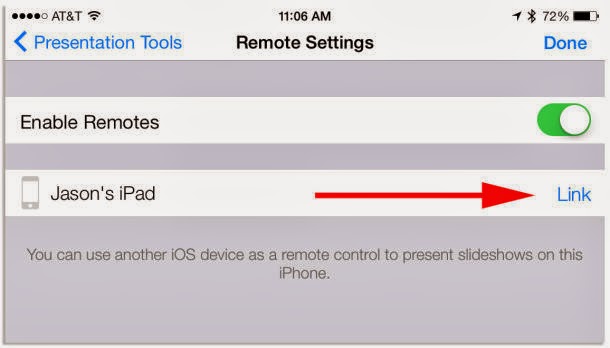
With a specific end goal to utilize one ios mechanism to control Keynote on an alternate ios unit, tap on the remote symbol on the fundamental screen in Keynote on the apparatus you need to go about as a remote. Accompany the prompts to make the gadget accessible (showed by an enlivened blue dab amidst your screen). On the mechanism you need to have the slideshow shown on, launch the slideshow and explore to the same settings screen where you beforehand empowered remotes. There you will see the remote mechanism recorded (envisioned previously). Tap on Link and check the same security code is shown on both mechanisms. 

To utilize an ios gadget as a remote for a presentation on a Mac, start the ios application and tap on the remote symbol. Once more, take after the prompts until the blue speck is enlivened, showing your mechanism is accessible. On the Mac explore over to Remotes settings in inclination and click on "Link" placed beside the gadget you'd jump at the chance to use as a remote (imagined previously). Affirm the security code. 

When apparatuses are interfaced, launch the presentation and on the remote gadget, tap the remote symbol accompanied by the huge green play bind.

For more from please follow us our Facebook Page-
or contact us at

http://www.techvedic.co.in/careers/
http://www.techvedic.com/careers/
http://www.techvedic.co.uk/careers/

Friday, 24 January 2014

Never shoot a vertical movie with iphone


Know somebody who experiences Vertical Video Syndrome? Blessing them this application and help them shake the terrible propensity! 

Skyline is an application we all wish had existed long back. The reason is straightforward: regardless of how somebody is holding their telephone, the application will just record even film. I initially uncovered the application while perusing a post on TUAW. 

Some may even view this application as a cure for Vertical Video Syndrome. I know I do. Not acquainted with VVS? Here, watch this motion picture and after that return. I think we can all concur, VVS should stop. 

first mode - keeps the video framed horizontally and at the same size.


second mode -  will adjust the scale (or zoom) as you rotate your device.


third mode  locks the video into full horizontal orientation, even if you rotate your device.


Priced at just under a dollar, Horizon is compatible with most iOS devices running iOS 7 and up
to download:- 


For more from the XpertCrewTM team please follow us on Twitter @Techvedic or 

our Facebook Page- 

or  contact us at

U.S. +855-859-0057 (http://www.techvedic.com/  )
U.K. +800-635-0716 (http://www.techvedic.co.uk/ )
CA  1-855-749-5861 (http://www.techvedic.ca/ )
AU  1-800-197-298  (http://www.techvedic.com.au/ )
And yes, we are eagerly waiting for your valuable feedback. Do write us back. We would be more than happy to help you. We are available 24/7.


Wednesday, 8 January 2014

How to watch Google Play videos on your iOS device?

Description


If you are looking for the way to watch Google Play Store videos on your iOS device then it is possible now. Let’s have a look on this tutorial to see how.


Solution:

1. Install YouTube app on your iPhone, iPod Touch or iPad.

2. Run it and sign into your YouTube account.

3. In the top left corner, tap the menu button.


4. Scroll down to see “Purchases” and tap it.


5. Now, you can see all your Google play movies and TV shows. Tap the one you want to watch.
Remember, you can’t watch your iTunes purchases on your Google device. But, still it is good as you can watch the videos of Google Play Store without having Android-powered smartphone.
For more from the XpertCrewTM team, please follow us on Twitter @Techvedic or contact Techvedic’s computer support helpdesk, as per below contact-details:
U.S. +855-859-0057 (http://www.techvedic.com/  )
U.K. +800-635-0716 (http://www.techvedic.co.uk/ )
CA  1-855-749-5861 (http://www.techvedic.ca/ )
AU  1-800-197-298  (http://www.techvedic.com.au/ )
And yes, we are eagerly waiting for your valuable feedback. Do write us back. We would be more than happy to help you. We are available 24/7.


Tuesday, 7 January 2014

Better iPad browsing with updated Coast by Opera

Description


By introducing Coast for the iPad, Opera has now taken out the version 2.0 for its tablet browser. With this update, you can enjoy new features but the design is still same.


Solution:
It is unchanged from the last September Coast but two buttons are missing. The version 2.0 doesn’t have forward and backward buttons. In its place, it lets you swipe left and right to move forward and backward.
Its tiled home screen can be easily customized now. In order to choose from Opera’s small collection of wallpapers or an image of your own from your photo gallery, you need to long press. Now, you can easily open PDFs documents in another app. If you are viewing a PDF file in Coast then tap on it and you will find a menu through which you can open document in another app such as iBooks, Evernote, Dropbox or Google Drive.
Through Coast, you can see which tile is playing audio or video. If any audio or video files are playing in the background then the tile will display a small sound wave graphic along its bottom edge.
For more from the XpertCrewTM team, please follow us on Twitter @Techvedic or contact Techvedic’s computer support helpdesk, as per below contact-details:
U.S. +855-859-0057 (http://www.techvedic.com/  )
U.K. +800-635-0716 (http://www.techvedic.co.uk/ )
CA  1-855-749-5861 (http://www.techvedic.ca/> )
AU  1-800-197-298  (http://www.techvedic.com.au/> )
And yes, we are eagerly waiting for your valuable feedback. Do write us back. We would be more than happy to help you. We are available 24/7.

Wednesday, 18 December 2013

Best practices for creating a home inventory

Description


If you are looking for a best way to create a home inventory then here we are to help you out.


Solution:

Be thorough

There are many things that you use thus, it is important to make your inventory as detailed as possible. It is a time consuming task to prepare the list of items that you own but after completing the initial list you can easily update it later. Always create an inventory with a method that can endure any natural disasters, fires or burglaries. The most optimum method is create a digital version of your inventory and store it in cloud.

Go digital


There is another way to make an inventory. In this, lay out your valuable possessions on the floor in each room and take a video. When you record, give name to each item. Store the video file in a cloud service such as Dropbox. Another service is called Digital Locker in which you need to take photos of your belongings and upload them directly to the service using an iPhone and Android app. You can upload three photos per item as well as fill the necessary information. Through these videos, you can easily prove that you owned that item.

Some important things to consider:

1. Once a year, update your list, video or pictures.

2. When updating the list or video, indicate those items that you no longer have as well as enter new items.

3. Without any inventory app, you can create a smartphone video.

Furthermore, if you have any other question regarding the inventories then you can contact your personal agent.
For more from the XpertCrewTM team, please follow us on Twitter @Techvedic or contact Techvedic’s computer support helpdesk, as per below contact-details:
U.S. +855-859-0057 (http://www.techvedic.com/  )
U.K. +800-635-0716 (http://www.techvedic.co.uk/ )
CA  1-855-749-5861 (http://www.techvedic.ca/ )
AU  1-800-197-298  (http://www.techvedic.com.au/ )
And yes, we are eagerly waiting for your valuable feedback. Do write us back. We would be more than happy to help you. We are available 24/7.

Tuesday, 17 December 2013

Use your mobile device with the Xbox One and PS4

Description

Earlier mobile market was dominated with blackberry and Nokia. But, after the entry of Apple it has become the emperor of mobile industry. To enhance the charm of mobile devices, Microsoft and Sony has launched several mobile apps so as to allow gamers to access various Xbox One and PlayStation 4 features.

Solution:

Xbox One SmartGlass


If you have Xbox 360 then you must be aware of Microsoft’s SmartGlass app. Let’s discuss about the app in brief:

Availability- It is available for free for Android, iOS, Windows Phone, and Windows 8 and RT devices.

Getting started- When the first time you open the app, you need to sign in to your Microsoft account. After this, you can see four rows of tiles- Now Playing, recent, Featured and My Pins. With Now Playing tile, information about your current actions is displayed. The Recent section shows the recent Xbox activity. In the Featured section, new movies, TV shows, and games are available. My Pins section contains specifically pinned apps and games. From the Options menu, you can access your Xbox Live profile, friends list, achievements, pins, messages, and app settings.

Connecting to the Xbox One- Connect the Xbox One and your mobile device to the same network. For this, click “Connect” button again and again. If it is still not connecting then click “Enter IP address" option and then enter the Xbox One’s IP address.  

Functionality- By launching a live tile from the SmartGlass app, you can transform your mobile device into an 

Xbox One controller. You can choose games and programs along with a feature to display additional information on your device.

Tips- Use the “Stay Awake” option from app settings to keep the screen of your device from dimming or turning off. Also, you can use the search feature to find games, movies, TV shows, music and apps.

PlayStation 4


Sony has also released its PlayStation app to provide access to PlayStation Store including its features.
Availability- It is free in Apple’s App store and Google Play Store. This app is compatible with Android Smartphones and tablets.

Getting Started- To access the full features of the app, you need to log in to the PlayStation account. The What’s New Box displays the games which you have recently played as well as other updates from your PSN friends. With this, you can also get quick access to your profile, trophies, friends list, and purchase new games from the PlayStation Store. On the top, there is a navigation bar with options like notifications, invitations, game alerts, and messages. Get access to PlayStation news, tutorials, promotions and vents from Sony with Links tab.

Connecting to the PS4- Register your smartphone or tablet you are using to connect to the PlayStation 4. For this, go to settings, select “PlayStation App Connection Settings” and click on “Add Device.” Furthermore, connect your system and mobile device to the same network and then click on the “Connect to PS4” tab. After this, select your console and input the eight-digit code that was displaying on your HDTV.
Functionality- When the connection is complete, you can find three options: to disconnect, power the system down, or use your mobile device as a second screen. The second screen option provides two additional features- remote and keyboard.

For more from the XpertCrewTM team, please follow us on Twitter @Techvedic or contact Techvedic’s computer support helpdesk, as per below contact-details:

U.S. +855-859-0057 (http://www.techvedic.com/  )
U.K. +800-635-0716 (http://www.techvedic.co.uk/ )
CA  1-855-749-5861 (http://www.techvedic.ca/ )
AU  1-800-197-298  (http://www.techvedic.com.au/ )
And yes, we are eagerly waiting for your valuable feedback. Do write us back. We would be more than happy to help you. We are available 24/7.
Monday, 16 December 2013

Flipagram helps create videos using your photos

Description
Talking about the top free app, Flipagram is available to create slideshows of your photos using your iOS device. This app works on iPhone, iPod Touch, and iPad.

Solution:

After launching the app, you can connect your Facebook and Instagram accounts to it as well as you can use your phone photos to create short video. In this, you can place as many photos as the app refers for the video. The length of the video is exactly as the Instagram length or it may be 15 seconds. Moreover, you can also add a title as well as select a font from the list. There will be watermark placed on your video but you can unlock the feature by paying $0.99. After this, you will be able to remove the default watermark and add your own in its place. Additionally, you can customize it using one of the given fonts.


Well, make your slideshow more amazing by adding your own music to it. In fact, you can select which part of the song you want to add to the beginning of your slideshow. After completing the video, you can save it to the app or you can upload it directly to Facebook and YouTube. Now, the app is available for free in the App Store.
Download it now and you surely going to love it! For more from the XpertCrewTM team, please follow us on Twitter @Techvedic or contact Techvedic’s computer support helpdesk, as per below contact-details:
U.S. +855-859-0057 (http://www.techvedic.com/  )
U.K. +800-635-0716 (http://www.techvedic.co.uk/ )
CA  1-855-749-5861 (http://www.techvedic.ca/ )
AU  1-800-197-298  (http://www.techvedic.com.au/ )
And yes, we are eagerly waiting for your valuable feedback. Do write us back. We would be more than happy to help you. We are available 24/7.

Thursday, 28 November 2013

Sony Releases PlayStation 4 App on iPhone and Android

Description
Sony’s PlayStation 4 is ready to set the floor very soon. Also, Android and iOS apps are released as an addition for this. Through this, you can use number of services present in PS4 as well as interact with the console.


Solution:
Replacing the old PlayStation app, this app has completely changed UI which is redesigned to match with PS4. This time the feature set is based more on online and social content. You can access the full PlayStation from the app and buy games on the go. After buying the games, these games go to the console to let you play in your leisure time. This app also has built-in PSN chat for setting up online gaming sessions with friends.
There are certain games and apps on the PS4 that let you view second-screen content as well as interact with the game through your mobile device. In this, you can have game map, dialog window or some extra control options. In order to select games properly, game manuals and guides are also available in the app. You can use the app to launch things, change settings and input text. Therefore, you can access the PS4 even when you are not in the same room.
For both Android and iPhone, this app has same functionality. But, it is not improved for tablets on either platform. Although it will run on tablets yet it won’t look good. So, get ready to explore this adventurous journey of gaming world.
For more from the XpertCrewTM team, please follow us on Twitter @Techvedic or contact Techvedic’s computer support helpdesk, as per below contact-details:
U.S. +855-859-0057 (http://www.techvedic.com/  )
U.K. +800-635-0716 (http://www.techvedic.co.uk/ )
CA  1-855-749-5861 (http://www.techvedic.ca/ )
AU  1-800-197-298  (http://www.techvedic.com.au/ )

And yes, we are eagerly waiting for your valuable feedback. Do write us back. We would be more than happy to help you. We are available 24/7.

Thursday, 14 November 2013

How to remove lock screen notifications on OS X Mavericks?

Description

Are you tired of getting lock screen notifications from the apps you use on Mac? Don’t want others to see your notifications?? Then the solution is here.

Solution:

By changing the default setting of pushing alerts on your lock screen, you can get rid of this problem. For this, launch “System Preferences” and select “Notifications” option. Also, you can click on “Settings” icon when seeing Notification Center. This icon is situated on bottom-right corner.

OS X Mavericks-1

When you see various apps for which you receive notifications, you can choose those you want to remove from your lock screen. Now, you can also find a new checkbox for lock screen notifications. For removing any app, you need to uncheck the box so as to keep them behind the lock screen and private. In case, you want the notifications back on lock screen then simply revisit the Notification Settings pane and check the little box.
So, whether you want to on or off the lock screen notifications you can do it simply. For more from the XpertCrewTM team, please follow us on Twitter @Techvedic or contact Techvedic’s computer support helpdesk, as per below contact-details: 
U.S. +855-859-0057 (http://www.techvedic.com/ )
U.K. +800-635-0716 (http://www.techvedic.co.uk/ )
CA 1-855-749-5861 (http://www.techvedic.ca/> )
AU 1-800-197-298 (http://www.techvedic.com.au/> )
And yes, we are eagerly waiting for your valuable feedback. Do write us back. We would be more than happy to help you. We are available 24/7.