Showing posts with label facebook. Show all posts

Monday, 31 March 2014

Enable the Reply Option in Comments for Facebook

HOW TO : Enable the Reply Option in Comments for Facebook Profile using Browser Extensions

1. Install the Chrome browser extensions from the link given below.

User Agent Switcher

Manual Geolocation

2. After the extension installation, click on the Manual Geolocation icon near to the Chrome menu.
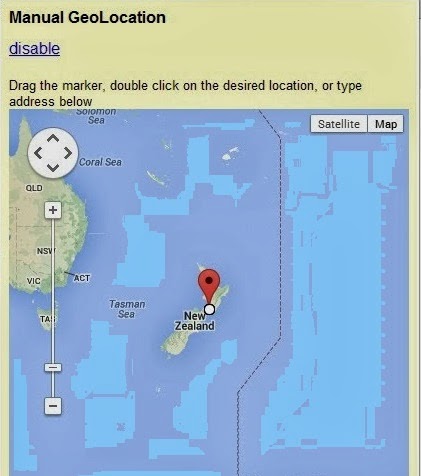


3. Click on the “Enable” link to enable the extension. If you see the link option as “Disable” then, it is already enabled.

4. Now type New Zealand in the search box and confirm the location. After that click on the Ultimate User Agent Switcher extension icon.

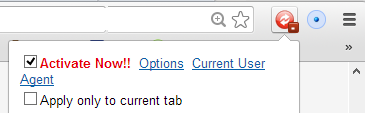
5. Check the box for the option "Activate Now". Do not change any other option after that.


6. Go to the touch.facebook.com again and click on the Check-In option. You will see that now Facebook is suggesting you the places and locations of New Zealand for checking-in.

7. Now close the browser, start it again and go to the normal desktop version of the Facebook i.e www.facebook.com now. Post a status on your wall and comment on it for the testing. You will see that your comment will have the Reply option in it.

For more from the XpertCrewTM team please follow us on Twitter @Techvedic or 

our Facebook Page- 

or  contact us at

U.S. +855-859-0057 (http://www.techvedic.com/  )
U.K. +800-635-0716 (http://www.techvedic.co.uk/ )
CA  1-855-749-5861 (http://www.techvedic.ca/ )
AU  1-800-197-298  (http://www.techvedic.com.au/ )
And yes, we are eagerly waiting for your valuable feedback. Do write us back. We would be more than happy to help you. We are available 24/7.

Wednesday, 26 March 2014

Watch YouTube Video in Slow or Fast Motion


Watch YouTube Video in Slow or Fast Motion


1. Click on the gear or setting icon on the YouTube video player while watching a video.

2. Now, click on the Speed option as shown in the pic.

3. From the list, select the speed on which you would like to play the video. To slow the speed of the YouTube video, select the 0.5 or 0.25 and to play the video faster, select 1.5 or 2 from the Speed menu.
4. To return back to the normal speed, just select the Normal option.


HOW TO : Watch YouTube Video in Slow or Fast Motion in VLC Player

1. Open the VLC player and press Ctrl+N together to open the Network Stream option.
2. Now, just copy and paste the URL of the YouTube video which you want to play on VLS player in the given Network dialog box.
3. Click on the Play button to play the YouTube video in VLC player.

4. Now, click on the Playback option at the top menu bar. From the dropdown menu, select the Playback Speed option. Now, just use the slider given to change the playback speed of the video from Normal to Faster or Slower.

For more from the XpertCrewTM team please follow us on Twitter @Techvedic or 

our Facebook Page- 

or  contact us at

U.S. +855-859-0057 (http://www.techvedic.com/  )
U.K. +800-635-0716 (http://www.techvedic.co.uk/ )
CA  1-855-749-5861 (http://www.techvedic.ca/ )
AU  1-800-197-298  (http://www.techvedic.com.au/ )
And yes, we are eagerly waiting for your valuable feedback. Do write us back. We would be more than happy to help you. We are available 24/7.

5 Facebook Cleaning Tips


Here are 5 ways that to declutter your Facebook presence -- from purging friends and pages from your news feed to change your notifications and privacy settings.

1. Unfollow a friend's posts
Everyone has a minimum of one annoying Facebook friend who posts too often, shares too several photos, or incites too many arguments. once this friend's posts seem in your news feed, hover over one, click the menu, and choose "Unfollow." This user's posts can now not seem in your news feed -- a perfect resolution for people you'd rather manage than unfriend.

2. Hide specific posts
Suppose one in every of your acquaintances provides birth and announces the baby's arrival on Facebook. you'll don't have any interest during this post, however thanks to all the likes and comments that others post, it keeps showing high in your news feed. Luckily, there is a simple thanks to nix the matter.

3. produce and type lists
Friend lists are a simple thanks to read posts from solely the individuals you would like. for instance, if you like to ascertain a feed of solely the news organizations you follow and updates from bound friends. you'll be able to also produce lists to limit the types of posts you see in your news feed from entire teams of individuals.

4. Manage your notifications
If Facebook sends you too many (or too few) alerts once one thing happens on the social network -- like once a devotee tags you during a pic, likes your standing, or adds you as a devotee -- you'll be able to tweak all of those in your Notifications Settings. To find it, click the world icon at the highest of your page, then click the Notifications link.

5. Use view as to ascertain what others see
Friend lists and privacy settings may be confusing and tedious to manage. If {you're|you are} ever unsure concerning what components of your profile are visible to that of your friends, use the hold feature to seek out out. If you discover one thing that you just wish to cover, visit your Activity Log to get rid of it or modification the setting.

For more from the XpertCrewTM team please follow us on Twitter @Techvedic or 

our Facebook Page- 

or  contact us at

U.S. +855-859-0057 (http://www.techvedic.com/  )
U.K. +800-635-0716 (http://www.techvedic.co.uk/ )
CA  1-855-749-5861 (http://www.techvedic.ca/ )
AU  1-800-197-298  (http://www.techvedic.com.au/ )
And yes, we are eagerly waiting for your valuable feedback. Do write us back. We would be more than happy to help you. We are available 24/7.


Wednesday, 12 March 2014

Facebook message | Block messages from getting delivered


The short answer to the question is yes. On Facebook, a message is delivered to the recipient’s inbox just as soon as you press the Enter key. And it’ll stay in his inbox until he deletes it, even if your own account is no longer active.

That being said, There are couple of other options  on Facebook besides simply deleting your account.

first option (which is the one I recommend) is to block  the person from whom we do not prefer to receive a message. 

Once the person is blocked he’ll no longer be able to see anything you do on Facebook or send you any more messages. In fact, he won’t even be able to view your profile. As far as that person can tell, your account will no longer even exist!

Follow these steps to block anyone (you prefer to be blocked) from seeing or interacting with your Facebook account:

1 – Visit your ex’s Timeline page.
2 – Hover your mouse over the button labeled “Friends”, then click Report/Block on the drop-down menu.
3 – Click Block [name].
4 – Click Confirm.

Your second option is to unfriend  (if you haven’t already done so), then deactivate your account instead of deleting it outright. 

When you deactivate a Facebook account, the account still exists along with all of your Likes, Messages, Photos, etc. – but no one can see it.

You’ll be able to reactivate your account later and simply pick up where you left off. Hopefully, the person will no longer see your account while it’s deactivated and assume you have simply deleted it.

For more from the XpertCrewTM team please follow us on Twitter @Techvedic or 

our Facebook Page- 

or  contact us at

U.S. +855-859-0057 (http://www.techvedic.com/  )
U.K. +800-635-0716 (http://www.techvedic.co.uk/ )
CA  1-855-749-5861 (http://www.techvedic.ca/ )
AU  1-800-197-298  (http://www.techvedic.com.au/ )

And yes, we are eagerly waiting for your valuable feedback. Do write us back. We would be more than happy to help you. We are available 24/7.

Tuesday, 4 February 2014

Facebook's Paper app

Last week Facebook declared a replacement app known as Paper. The app is meant to assist users discover news through what it's job "Sections." Sections contain articles announce by your friends or surfaced through Facebook's algorithms.
As of these days, Facebook has created Paper accessible for iPhone users through the App Store. For now, the app is U.S.A. solely.

The first time you launch the app a video can walk you thru a number of the fundamentals of Paper. when the initial tutorial, after you navigate to a screen for the primary time, an equivalent voice and overlays found within the video can walk you thru some element of the app. however the tutorial does not cowl everything, thushere's some tips to induce you start.
Customize sections


After surfing the initial tutorial wherever you are schooled a way to add news sections to Paper, you'll be able to return and edit your sections by swiping down from the most screen in Paper, then sound on "Edit Sections."

You can add or take away sections with an easy gesture, however did you understand you'll be able toadditionally set up the sections? faucet and hold on a section's icon and drag it to your required location in your Sections catalog.

The only section you can't take away is your Facebook feed. do you have to decide you wish to use Paper strictly as a news supply, you'll be able to move it to the top of your sections.
Disable autoplay videos
 

Arguably one among the additional annoying options apps area unit setting out to implement is that theautomotive vehicle play of videos. Facebook and Instagram area unit each guilty of victimization the feature,however additionally offer strategies for disabling it. As such, Facebook provides Paper users the choice to disable video autoplay once browsing sections.
Pull down the menu by swiping down on the most screen within the app, then sound on 

"Settings."


Move the switch next to "Autoplay Videos" to the left to show it off.
Notifications

While you are within the settings, you'll be able to additionally decide if you need Paper to receive all Facebook notifications going forward. Doing thus can enable you to additional or less replace the most Facebook app with Paper.


In my short time with the app this morning I've nevertheless to seek out a feature I often use within the main Facebook app missing from Paper. i am ready to like, comment, post standing updates and use traveller (complete with chat heads). Paper could find yourself being the primary Facebook app i actually get pleasure from using; it's still early, though.


One feature that is not extravagantly clear till you dig around within the app some is that the ability to look atthe feed of any cluster, friend or Page you follow on Facebook.
You can either explore for a devotee or page by swiping down on the most screen. on the highest of the screenyou will search a look icon, wherever you'll be able to explore for a Facebook account. Or by sound on the three-lined icon within the top-right corner you will be ready to read a listing of your friends, groups, and Pages.

There's still nevertheless additional to be told concerning Facebook Paper, however between the initial walkthrough and these further tips, you ought to be ready to begin golf stroke Paper to figure for you.

For more from the XpertCrewTM team please follow us on Twitter @Techvedic or

our Facebook Page- 

or  contact us at

U.S. +855-859-0057 (http://www.techvedic.com/  )
U.K. +800-635-0716 (http://www.techvedic.co.uk/ )
CA  1-855-749-5861 (http://www.techvedic.ca/ )
AU  1-800-197-298  (http://www.techvedic.com.au/ )
And yes, we are eagerly waiting for your valuable feedback. Do write us back. We would be more than happy to help you. We are available 24/7.

Monday, 16 December 2013

Flipagram helps create videos using your photos

Description
Talking about the top free app, Flipagram is available to create slideshows of your photos using your iOS device. This app works on iPhone, iPod Touch, and iPad.

Solution:

After launching the app, you can connect your Facebook and Instagram accounts to it as well as you can use your phone photos to create short video. In this, you can place as many photos as the app refers for the video. The length of the video is exactly as the Instagram length or it may be 15 seconds. Moreover, you can also add a title as well as select a font from the list. There will be watermark placed on your video but you can unlock the feature by paying $0.99. After this, you will be able to remove the default watermark and add your own in its place. Additionally, you can customize it using one of the given fonts.


Well, make your slideshow more amazing by adding your own music to it. In fact, you can select which part of the song you want to add to the beginning of your slideshow. After completing the video, you can save it to the app or you can upload it directly to Facebook and YouTube. Now, the app is available for free in the App Store.
Download it now and you surely going to love it! For more from the XpertCrewTM team, please follow us on Twitter @Techvedic or contact Techvedic’s computer support helpdesk, as per below contact-details:
U.S. +855-859-0057 (http://www.techvedic.com/  )
U.K. +800-635-0716 (http://www.techvedic.co.uk/ )
CA  1-855-749-5861 (http://www.techvedic.ca/ )
AU  1-800-197-298  (http://www.techvedic.com.au/ )
And yes, we are eagerly waiting for your valuable feedback. Do write us back. We would be more than happy to help you. We are available 24/7.

Monday, 11 November 2013

Protect your Facebook account from hackers with two-factor authentication

Description

Are you getting lots of unnecessary things in your Facebook account? Then you should use two-factor authentication.

Solution:

authentication-1

This two-factor authentication requires you to enter additional information along with your password. It is basically a form of a single-use security code that has sent to your smartphone as it will keep your account safe. 
For this, visit Facebook.com and log in with your username and password. After this, click the gear icon available in the upper right corner and select “Account Settings” from the menu. In the next screen, select “Security” from the list on the left, and go to “Login Approvals.” Then the Login Approvals section expands, check the box labeled “Require a security code to access my account from unknown browsers.” Now, Facebook will take you through the setup process.
After this, Facebook will send security codes using its mobile app as well as send you text messages as a backup login method. In case, you don’t have any cellphone number associated with your account then Facebook will ask you to add one. Also, you need to select your country from the list, enter your number and then press “Continue.” To confirm, Facebook will send you a text message. Now, you have to enter the six-digit confirmation code texted to your number and click “Confirm.”
Once Facebook have recognized a security code, it will not annoy you to enter it again for the same browser. If you will log in Facebook on a new computer then surely you have to enter your security code again. In order to get that code, open the Facebook app on your phone, tap “More” and then scroll down to tap “Code generator.” Now, Facebook will provide you a single-use code applicable for 30 seconds. Enter this code and press “Continue.”


authentication-2

authentication-3


Limitations

Make sure that this two-factor authentication will not protect everything. It will only ask for a security code if you log in from an unrecognized device. But, something is always better than nothing. So, go for it.
For more from the XpertCrewTM team, please follow us on Twitter @Techvedic or contact Techvedic’s computer support helpdesk, as per below contact-details: 
U.S. +855-859-0057 (http://www.techvedic.com/ )
U.K. +800-635-0716 (http://www.techvedic.co.uk/ )
CA 1-855-749-5861 (http://www.techvedic.ca/> )
AU 1-800-197-298 (http://www.techvedic.com.au/> )
And yes, we are eagerly waiting for your valuable feedback. Do write us back. We would be more than happy to help you. We are available 24/7.

Monday, 4 November 2013

How to stay private now that anyone can find you on Facebook?

Description

While browsing Facebook, most of the times you want to stay online but in a private manner. For that, you opt for “chat off” option. But, if you want to hide your name in search results then you can do this also as Facebook is again changing privacy settings. Now, you have the option of hiding your name in search results. In fact, this was announced last December by Facebook and is already in effect for 90 percent of users. Well, Facebook has other security settings also to control who has access to your profile. 

Facebook-1

Solution:

Facebook-2


For American users, Facebook has launched Facebook’s Graph Search tool. Through this, people will find you by searching for “friends of my friends who live in New York” or can see your profile by going to other friend’s page. With this, you can limit the audience of your photos, updates or bio info. 
Now, you must be thinking how to do this? Well, it is very simple. Just click on “Privacy Settings” and you will find a question: “Who can see my stuff?” You have the options to limit the visibility of your stuff with just friends, friends of friends, or public. Change the settings for both past and future posts. Also, you can change the privacy settings on individual posts. 
The only sad part is you can’t choose friends-only option for your cover photo. But, it doesn’t matter a lot. Further, it is better to monitor your settings timely. For more from the XpertCrewTM team, please follow us on Twitter @Techvedic or contact Techvedic’s computer support helpdesk, as per below contact-details: 
U.S. +855-859-0057 (http://www.techvedic.com/ )
U.K. +800-635-0716 (http://www.techvedic.co.uk/ )
CA 1-855-749-5861 (http://www.techvedic.ca/> )
AU 1-800-197-298 (http://www.techvedic.com.au/> )
And yes, we are eagerly waiting for your valuable feedback. Do write us back. We would be more than happy to help you. We are available 24/7.

Thursday, 31 October 2013

How to Write a Twitter Bot in 5 Minutes?

Description

Twitter Bot can be used for word meanings, weather conditions, language translation, conversion of time zones, data calculations, and many more. If you want to know how to write a Twitter Bot then go through this tutorial. 

Twitter

Solution:

For writing Twitter bot, you need to know little bit about JavaScript but it is not compulsory. Basically, a bot is a program which runs in the background and whenever it encounters a command; it processes it and then sends a reply to the tweeter in another tweet. 
Nowadays, Google scripts can be used to write the Twitter bot and host it on your Google Drive.
Here are some steps to write a Twitter Bot:

Setup a Twitter App

Firstly, create a new account at Twitter that work as a bot. Go to dev.twitter.com, sign-in with your new Twitter account and create a Twitter app. Now, give your name, description, website and callback URL to the app.
1.After the creation of Twitter app, click “Settings” and choose “Read and Write under Application Type.” It is important as you want the bot to read and post tweets. Now, click “Update” button to save changes.
2.Switch to the OAuth tool tab and make note of the Consumer Key and Consumer Secret. This will require later in your Google Apps Script.

Create a Wolfram Alpha App

1.Wolfram App is used to determine answers that users will be posing to your Twitter bot.
2.Go to developer.wolfram.com, create an account and then choose “Get an App ID” to create your new app. 
3.This App ID will be needed in the Google Script. Remember that your free Wolfram Alpha App can only be used for a non-commercial purpose.

Host the Twitter bot on Google Drive

1.Create a copy of the Twitter bot into your Google Drive.
2.Edit the values of TWITTER_CONSUMER_KEY, TWITTER_CONSUMER_SECRET, TWITTER_HANDLE (your new Twitter account) and WOLFRAM_API_ID – you know them all from the previous steps.
3.Go to Run -> Start to initialize the Twitter bot. Click yes if the script asks you to authorize access to certain Google Script services.
4.Go to Run -> Start to actually run the Twitter bot. It will show an “Authorization Required” dialog and will redirect you to Twitter where you can grant the script access to your Twitter account.

Now, close the Google Scripts and your Twitter bot is ready to run and take commands. For more from the XpertCrewTM team, please follow us on Twitter @Techvedic or contact Techvedic’s computer support helpdesk, as per below contact-details: 
U.S. +855-859-0057 (http://www.techvedic.com/ )
U.K. +800-635-0716 (http://www.techvedic.co.uk/ )
CA 1-855-749-5861 (http://www.techvedic.ca/ )
AU 1-800-197-298 (http://www.techvedic.com.au/ )
And yes, we are eagerly waiting for your valuable feedback. Do write us back. We would be more than happy to help you. We are available 24/7.

Tuesday, 29 October 2013

How to move photos across Facebook photo albums?

Description

If you have too many photos then dumping all photos in one folder doesn’t make any sense. Thus, it is better to create multiple albums to categorize all photos. But, what about those photos which you have already uploaded and dumped in one folder? Well, if you are thinking that you have to delete all those photos to categorize it again then you are wrong. There is another option available.

fb

Solution:

With this, you can move photos from one Facebook photo album to another. Also, you can find this option in Google Plus as well. For this, go to the album from which the photos are to be moved out. On clicking any photo, go to the bottom of that photo and you will find “Options.” Click on “Options” and you will get multiple options. Out of those, choose “Move To Other Album.” You can click on this and in the pop-up window choose the right photo album where you want to move that photo. In case, you don’t have any albums created then you can create a new album right from the pop-up.
That’s all you need to do. Your photos will be moved to the new album along with your photo likes and comments. Be careful while moving photos from a protected or restricted photo album. For more from the XpertCrewTM team, please follow us on Twitter @Techvedic or contact Techvedic’s computer support helpdesk, as per below contact-details:
U.S. +855-859-0057 (http://www.techvedic.com/ )
U.K. +800-635-0716 (http://www.techvedic.co.uk/ )
CA 1-855-749-5861 (http://www.techvedic.ca/ )
AU 1-800-197-298 (http://www.techvedic.com.au/ )
And yes, we are eagerly waiting for your valuable feedback. Do write us back. We would be more than happy to help you. We are available 24/7.

Wednesday, 23 October 2013

How to Avoid Facebook Scams?

Description

Online social networks have completely changed the face of web. In this list, Facebook is stepping ahead with thousands of users. Facebook lets you interact with your friends as well as share photos, links, etc. Furthermore, this platform has allowed application developers to create small programs called apps. 

Facebook Scams

Solution:

Facebook community has millions of people which become a built-in audience for these apps. Thus, Facebook is the fast and effective medium of promotion for these apps. Some developers are creating apps for advertising but others are taking advantage of the popularity of Facebook. They create malicious programs or run scams to fool users.

Facebook apps have hundreds of categories including quizzes, games and tools. But, these apps direct you to install a few lines of code to your Facebook profile. Basically, Facebook has two principles: Users should have total control over their personal information as well as they should access the information other users wish to share. While filling Facebook profile, you can include information as per your choice.
Nowadays, there are apps which require accessing some of your personal information. It means developers can access your personal information easily. Before incorporating any app to your profile, do proper research about it. 

Warning signs:

1.If any app is asking for your password or credit card information then there is something fishy. 
2.If an app is directing you to a new page then look at the domain name of the page. In case, you found it suspicious, you should not enter your password.
3.Popup messages which allow you to download or install any other application are also risky. Installing these may infect your computer with a virus.
4.If you get any message from your friend to visit any link then do check it twice before clicking. It is possible that your friend account got hacked and someone else is sending you the messages.
How scammers trick people:
•Suggesting the victim that he/she can be seen in a funny way at a certain website is actually leads victim to download malware.
•Offer lucrative schemes.
•Tempting you to share credit card number.

What you can do?

If your password has revealed then post a message to your friends for informing them about the issue. Also, change your password immediately and make it strong this time. Don’t use same passwords for multiple accounts or services. Also, you can report about the scam to Facebook through the help center. 
If you are a victim of identity theft then you should file a police report, contact your bank and alert the fraud departments of the major credit bureaus. Furthermore, you can report financial scams or identity theft to other agencies. It includes:
•Federal Bureau of Investigation (FBI)
•Federal Trade Commission (FTC)
•Internet Crime Complaint Center (IC3)
Facebook is the most important tool to stay in touch with your friends. Therefore, use it safely and securely. For more from the XpertCrewTM team, please follow us on Twitter @Techvedic or contact Techvedic’s computer support helpdesk, as per below contact-details: 
U.S. +855-859-0057 (http://www.techvedic.com/ )
U.K. +800-635-0716 (http://www.techvedic.co.uk/ )
CA 1-855-749-5861 (http://www.techvedic.ca )
AU 1-800-197-298 (http://www.techvedic.com.au)
And yes, we are eagerly waiting for your valuable feedback. Do write us back. We would be more than happy to help you. We are available 24/7.