Showing posts with label chrome. Show all posts

Tuesday, 8 July 2014

HOW TO CLEAR BROWSER CACHE

Most browsers associate clearing the cache with deleting cookies and provide control over cookies in the same general area. We've included information on deleting cookies with the cache-clearing instructions below.

Internet Explorer 7


Select "Tools" at the right side of the browser's toolbar. Select "Internet Options" from the bottom of the "Tools" pop-up menu.


On the "General" tab of the "Internet Options" dialog box, select "Delete" in the "Browsing History" section.


Uncheck the "Preserve Favorites website data" box. Check the "Temporary Internet files" and "Cookies" boxes. Select "Delete."


Google Chrome V3.2

Select the Chrome menu on the browser toolbar.


Select "Tools."


Select "Clear browsing data." 


Select the checkboxes for the kind of data you want removed. Use the dropdown menu to select the time from which you want to delete data. Choose "beginning of time" to delete all the data.


Select the "Clear browsing data" button. This will both clear the cache and remove cookies.


Firefox

Select the "Firefox" button at the top left corner for the browser window, then "Options."


Select "Advanced" (1), then "Network" (2), then "Clear Now."


Safari 6.1.2

From the "Safari" menu, select "Preferences."


Select "Remove All Website Data." This will both clear the cache and remove cookies.


------------------------------------------------------------------------------------------------------------------

Get professional tech support, cloud backup and recovery solution, cloud CRM platform and cloud-based e-Commerce builder from Techvedic. For help and consultation, feel free to call our experts at 0800 016 3909 (Freephone).

About Techvedic: http://en.wikipedia.org/wiki/Techvedic

Get in touch with Techvedic on Social Media:

Techvedic Facebook Page: https://www.facebook.com/techvedic
Techvedic Twitter: https://twitter.com/techvedic
Techvedic Google Plus Page:  https://plus.google.com/+TechvedicInc/posts
Techvedic YouTube: https://www.youtube.com/user/Techvedic
Techvedic LinkedIn Profile: https://www.linkedin.com/company/techvedic


Visit: Techvedic – Ecommerce Solutions | http://www.techvedic.com/ | 1-855-859-0057 (USA) | support@techvedic.com

Friday, 18 April 2014

How to Speed up the Google Chrome


Follow these three simple steps, you can see the changes in the speed of the internet connection.

1. Disable the Plugins: Google Chrome Browser has provided various plugins that allows you to improve the user usability. But in turn, it will reduce the speed of the browser. Generally Google Chrome Browser has several built in Plugins that are installed predefined. For example, various plugins for java, Silverlight and so on. But most of those plugins are remain unused; in such a case you can improve the speed of the browser by disabling the plugins in the Google Chrome Browser.

2. Clear the Browsing Data: Browsing data are the data which are similar to cache memory that helps you access the websites through stored cookies.Cache memories are stored in the database of your system which allows you to store the history of the website that is visited by you. By clearing the browsing data, the speed of the internet connection can be improved.

3. Disable Extensions: These are the Small programs on the Google Chrome Browser, which is available in the Google Chrome Web store and these small programs adds an extra features to the Google Chrome Browser. These extensions are very useful, but if the number of the extensions increases then it would ends up in slower browsing speed of the personal computer. You can even disable this plugin to improve the browsing speed of your Google Chrome Browser without uninstalling the extensions from the Google Chrome Browser.


-------------------------------------------------------------------------

Need a high-end tech support service that delivers at odd hours, we make sure that you are not appalled even at odd hours if your computer is not working. At TechVedic, our experts are always there to provide tech support round the clock.

About Techvedic: http://en.wikipedia.org/wiki/Techvedic

Get in touch with Techvedic on Social Media:

Techvedic Facebook Page: https://www.facebook.com/techvedic
Techvedic Twitter: https://twitter.com/techvedic
Techvedic Google Plus Page:  https://plus.google.com/+TechvedicInc/posts
Techvedic YouTube: https://www.youtube.com/user/Techvedic
Techvedic LinkedIn Profile: https://www.linkedin.com/company/techvedic


Visit: Techvedic – Customer Relationship Management | http://www.techvedic.co.in/ | 1 800 3000 1126 | support@techvedic.com

Sunday, 9 March 2014

Play MP3 & Video Files directly using Google Chrome


Play MP3 & Video Files directly using Google Chrome

Google Chrome is presently the foremost standard application program, surpassing all major ones like Firefox, Opera and internet explorer. The browser is full-featured with varied functionalities and there's one great feature that you simply may be unaware of, that is that the ability to play audio and video files at intervals Chrome while not using any extra plugin or extension. this is often doable with the combination of Adobe Flash Player and HTML5 audio component in Chrome.

Use Google Chrome as a Music Player -

To Play an MP3, supported audio or video file in Chrome,

simply drag and drop the file over to the browser’s window. The music will start playing, you can pause and adjust the volume.

supported audio file formats include AAC, WAV, and OGG.

Similarly, you can watch saved videos in Chrome browser with support for popular formats like MP4, FLV and you can switch to full screen view.

For more from the XpertCrewTM team please follow us on Twitter @Techvedic or 

our Facebook Page- 

or  contact us at

U.S. +855-859-0057 (http://www.techvedic.com/  )
U.K. +800-635-0716 (http://www.techvedic.co.uk/ )
CA  1-855-749-5861 (http://www.techvedic.ca/ )
AU  1-800-197-298  (http://www.techvedic.com.au/ )
And yes, we are eagerly waiting for your valuable feedback. Do write us back. We would be more than happy to help you. We are available 24/7.

Tuesday, 11 February 2014

Browser toolbars clean up procedure

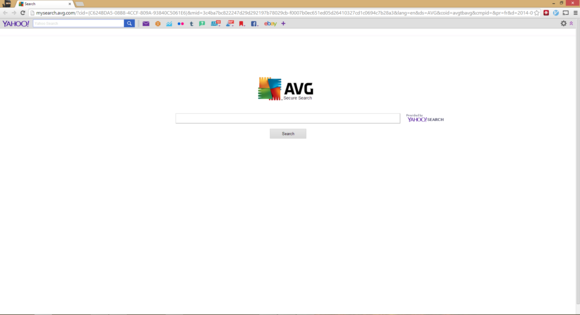
You would assume that in 2014, we'd have place all the net shenanigans of the Nineties and early aughts behind US,however you would be wrong—at least for Windows users. transfer a desktop app like AVG, Skype, or Vuze and these programs can attempt to sneak toolbars onto your system or modification your default home page and browser. Yuck.

If your browser is loaded down with toolbars otherwise you wish to induce back to looking with DuckDuckGoinstead of Bing, here's the way to do battle against these foes on Chrome, Firefox, and net somebody.


Internet Explorer

iemanage

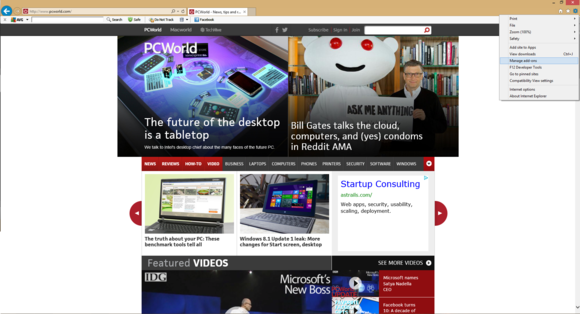
Like several fashionable browsers, net somebody will not let a toolbar run automatically—you ought to manually activate the trespasser. however it will still happen if you are not being attentive.

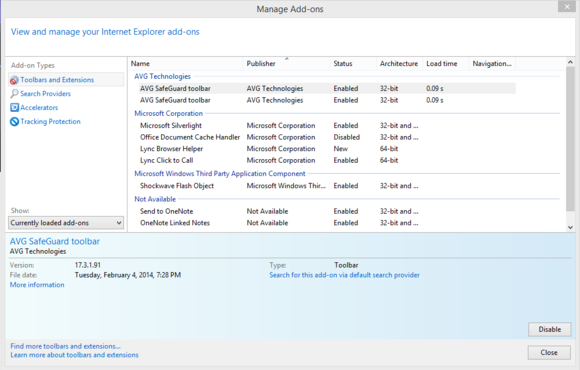
To scrub installed toolbars, click the settings cog in the upper right corner. From the drop-down menu select Manage add-ons. A new window will open and right at the top you'll see all of the toolbars hiding in your browser.

Highlight a toolbar you don't want and then at the bottom of the window, tap the Disable button. Repeat for all toolbars you want to get rid of and you're done.

iemanageaddons

If a toolbar has hijacked your default search provider, stay in the "Manage Add-ons" window and click on Search Providers in the left-hand navigation column. Again, highlight anything you want to get rid of and then click Remove at the bottom of the window.

Finally, if you need to reset your home page, click on the settings cog again, this time selecting Internet Options. In the new window that appears, open the General tab to see a text entry box right at the top. Remove whatever's in there and replace it with your preferred homepage (such as "https://www.google.com"). Then hit Apply, followed by OK.

Firefox
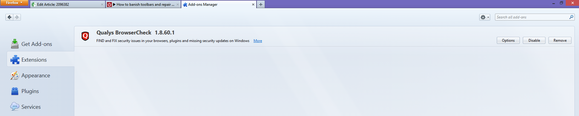
It's even harder to enable a toolbar by accident in Firefox, but mistakes happen. To fix your problem, click on the orange Firefox button in the upper left corner of the browser.

firefox add ons manager


From the drop-down menu select Add-ons. In the tab that opens, click Extensions in the left-hand navigation column. Select the toolbar you want to get rid of and then click the Disable button to the far right of the page. You may be prompted to restart, which you may want to hold off on if you plan to disable multiple toolbars.

firefoxoptions


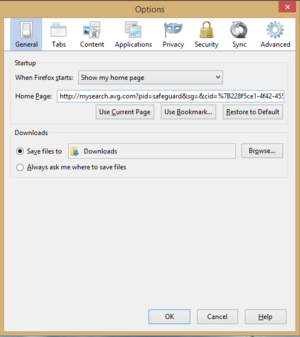
To reclaim your preferred search engine in Firefox, go back to the main Firefox interface. Click the search provider icon in the search box to the far right of the address bar. Then simply choose a search provider from the drop-down list that appears.

Finally, to return to an old home page, click the orange Firefox button again and select Options > Options. Then in the new window that opens select General. At the top you'll see a spot called "Home Page." Highlight the text entry box next to it, enter your preferred home page's  URL, and click OK.

Chrome
Chrome is even less of a fan of toolbars than other browsers, and Google plans on banning all toolbars from the Chrome Web Store by June.But sometimes we might download and install a toolbar just for the heck of it. Luckily, dumping a toolbar is almost as easy as installing it.

chrometoolbaravg


Start by tapping the menu icon in the upper right corner and select Settings from the drop down menu. In the new tab that opens, select Extensions from the left-hand navigation column. Scroll down until you find the toolbar you're looking for and either uncheck the Enabled checkbox or click the trash icon. Clicking the trash icon rids you of the toolbar for good, while unchecking the Enabled box leaves the toolbar installed but disabled.

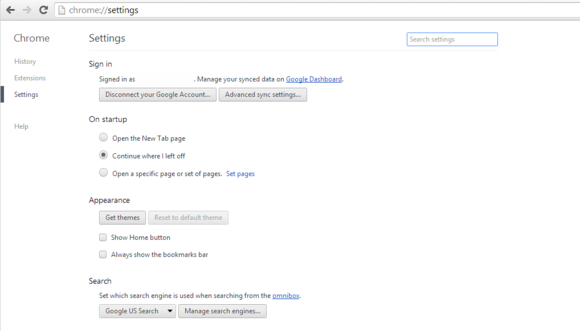
Chrome also resists changes to its default search provider, but if you ever need to change it, here's what you do.

Again go the Chrome settings tab, but this time choose Settings in the left-hand navigation column. Under Search, click on the drop down menu and select your preferred search provider from the list.

chromesettings

To return your home page settings, go up to the top of the same settings menu. Under On startup, click the Set pages link. A new window will open with the pages set to open when you fire up the browser. Hover over any pages you don't want and click the "X" on the far right of the page to nuke unwanted hijackers. You can also choose which page(s) to load on startup by merely adding their URL here.


That's it, you are back to normal!

Toolbars, home page, and computer program changes ar annoying, however they are doing take place from time to time if you are not careful once putting in new software package. Now, however, you recognize a way to obstruct the mental illness once disaster will strike.

For more from the XpertCrewTM team please follow us on Twitter @Techvedic or 

our Facebook Page- 

or  contact us at

U.S. +855-859-0057 (http://www.techvedic.com/  )
U.K. +800-635-0716 (http://www.techvedic.co.uk/ )
CA  1-855-749-5861 (http://www.techvedic.ca/ )
AU  1-800-197-298  (http://www.techvedic.com.au/ )
And yes, we are eagerly waiting for your valuable feedback. Do write us back. We would be more than happy to help you. We are available 24/7.

Sunday, 9 February 2014

Chrome Connectivity Diagnostics

When you are having network problems and cannot access the web, analytic the matter is not straightforward. As Ghacks points out, several pc systems have networking tools on the market to assist you work out the problem. Tools like ping, traceroute, nslookup, and netstat, area unit all tested utilities that facilitate determine network issues.

If you are not aware of mistreatment those tools or would really like an easier general tool, Google has created a Chrome app referred to as Chrome property medical specialty. It contains many completely different networking tests with the results displayed in AN easy-to-read format.

After installing Chrome Connectivity Diagnostics from the Chrome Web Store, start the app from the Chrome App Launcher to begin running the tests.


                  Chrome Connectivity Diagnostics running tests

To display all the tests and the results, click on the gear icon and select "Show passing tests." Clicking on the individual tests will provide a brief description of the test and a link to the logs.

                      Chrome Connectivity Diagnostics test results and log

That's it. If you happen to be on a Chrome OS device, you'll also notice two additional tests: Wi-Fi signal strength and default gateway is reachable.


For more from the XpertCrewTM team please follow us on Twitter @Techvedic or 

our Facebook Page- 

or  contact us at

U.S. +855-859-0057 (http://www.techvedic.com/  )
U.K. +800-635-0716 (http://www.techvedic.co.uk/ )
CA  1-855-749-5861 (http://www.techvedic.ca/ )
AU  1-800-197-298  (http://www.techvedic.com.au/ )
And yes, we are eagerly waiting for your valuable feedback. Do write us back. We would be more than happy to help you. We are available 24/7.

Tuesday, 4 February 2014

Track Gmail attachments

See when recipients open your Gmail attachments with docTrackr

This Chrome extension lets you encrypt and track Gmail attachments, set permissions for them

Some e-mail attachments square measure a lot of sensitive than others, even as some e-mail recipients square measure more experienced than others. Chrome extension docTrackr permits you to encode Gmail attachments, set permissions, and remotely destroy them. It conjointly alerts you once a recipient opens or prints AN attachment, therefore you'll decision shenanigans consecutive time your flighty friend claims to not have received AN attachment.


When docTrackr installs, it adds a button next to the regular attachment button in Gmail's compose window. It also adds a button to the right of Chrome's address bar that provides a link to docTrackr's dashboard. Click on docTrackr's attachment button to select a PDF to encrypt and attach. At present, docTrackr supports only PDFs but states that support for other file formats is coming soon.

When you hit Send on an email with a secure docTrackr attachment, the extension opens a window where you can select access rights. 


Your choices are: can view, can print, can edit. You can also select an expiration date for accessing the attachment. Click the Secure & Share button to send the e-mail.


On the receiving end, the attachment must be opened using Adobe Reader. I was unable to open a docTrackr using Preview in OS X, for example. Also, for a view-only attachment, the print button in Adobe Reader was grayed out.

You'll receive AN e-mail alert once your recipient opens the attachment. you'll conjointly read the activity of all the Gmail attachments you sent victimization docTrackr on its dashboard. And if you forgot to line AN expiration date or set one too so much within the future, you'll click the Disable button on the dashboard for AN attachment. there is conjointly AN alter button to reverse course.


For more from the XpertCrewTM team please follow us on Twitter @Techvedic or 

our Facebook Page- 

or  contact us at

U.S. +855-859-0057 (http://www.techvedic.com/  )
U.K. +800-635-0716 (http://www.techvedic.co.uk/ )
CA  1-855-749-5861 (http://www.techvedic.ca/ )
AU  1-800-197-298  (http://www.techvedic.com.au/ )
And yes, we are eagerly waiting for your valuable feedback. Do write us back. We would be more than happy to help you. We are available 24/7.

Monday, 9 December 2013

How to enable guest browsing in Chrome for Windows?

Description


Want to maintain some privacy between you and your guest user? Then you can use Chrome’s guest browsing mode. It is available in Chrome for Windows users also. Here is the solution for enabling guest browsing in Chrome.

Solution:

1. Enter “chrome://flags/#enable-new-profile-management” in the Chrome address bar.

2. Click “Enable” given under “Enable new profile management system.” Click “Relaunch Now” button available at the bottom of the browser.


3. As Chrome launches again, you can see an avatar in the upper left-hand corner. Now, click it and select “Browse as guest” so as to launch the guest browser window.


4. Allow your guest to browse the web.


As the availability of guest browsing in Chrome for Windows is in experimental phase thus, it may cause instability. For more from the XpertCrewTM team, please follow us on Twitter @Techvedic or contact Techvedic’s computer support helpdesk, as per below contact-details:
U.S. +855-859-0057 (http://www.techvedic.com/  )
U.K. +800-635-0716 (http://www.techvedic.co.uk/ )
CA  1-855-749-5861 (http://www.techvedic.ca/)
AU  1-800-197-298  (http://www.techvedic.com.au/ )
And yes, we are eagerly waiting for your valuable feedback. Do write us back. We would be more than happy to help you. We are available 24/7.

Monday, 25 November 2013

Add a full OS X Terminal to Google Chrome

Description

If you are a Chrome user and want to get full-fledged terminal right in your browser then we can help you.


Solution:

There is a Terminal plug-in in Google through which you can get access to the BSD command line interface within the browser and this provide you full access to the system. For installing it, go to “DevTools Terminal application” page within Chrome and click the given link to install the terminal add-on. After the installation task gets completed, it will appear as an app which you can click to load. The current tab gets converted into a Terminal window giving you the familiar command prompt in your home directory.

Similarly like other apps of Chrome, you can customize this app by right-clicking on it. Also, you can choose to open it as a regular tab or as a pinned tab or in full screen. For example, you are performing some task in Terminal and want to look the instructions to perform some command. Then create a new tab and browse the web for instructions. After this, you can go back to Terminal to complete the task.
As your Mac’s Terminal app supports tabs and multiple windows thus, the DevTools Terminal may seem redundant. However, for any other important application it may prove helpful so as to double-up the functionality. Having multiple Terminals make it easy for you to perform commands if one is not working.
Therefore, it is useful to keep both Mac’s and DevTools Terminals. For more from the XpertCrewTM team, please follow us on Twitter @Techvedic or contact Techvedic’s computer support helpdesk, as per below contact-details: 

U.S. +855-859-0057 (http://www.techvedic.com/  )
U.K. +800-635-0716 (http://www.techvedic.co.uk/ )
CA  1-855-749-5861 (http://www.techvedic.ca/> )
AU  1-800-197-298  (http://www.techvedic.com.au/> )
And yes, we are eagerly waiting for your valuable feedback. Do write us back. We would be more than happy to help you. We are available 24/7.

Thursday, 21 November 2013

Stop the Shockwave Flash Chrome crash

Description


If you are running two versions of Flash at the same time then it is better to turn off one of them. Go through this tutorial to turn it off.

Solution


For this, click Chrome’s address bar typing typechrome://plugins and this takes you to Chrome’s Plug-in page. Look at the listing for Adobe Flash Player. In case, it shows two files then there is problem. Furthermore, you need to click “Details” available near the upper-right corner of the browser window. There will be two .dll files listed. By checking its location, you can see which Chrome is which.
In your App data Chrome folder, Chrome’s built-in version will be there. Its path is:
C:\Users\yourlogon\AppData\Local\Google\Chrome\User Data\PepperFlash\11.9.900.117\pepflashplayer.dll.
In Windows folder, Adobe’s version will be present. Its path is:
C:\Windows\SysWOW64\Macromed\Flash\NPSWF32_11_9_900_117.dll.


Both of them have a “Disable” link. You can disable any one of them. If it will not work for you then uninstall and reinstall Flash. Moreover, you can also try disabling some extensions. For this, go to chrome://settings, and click on “Extensions” on the left.
For more from the XpertCrewTM team, please follow us on Twitter @Techvedic or contact Techvedic’s computer support helpdesk, as per below contact-details:
U.S. +855-859-0057 (http://www.techvedic.com/  )
U.K. +800-635-0716 (http://www.techvedic.co.uk/ )
CA  1-855-749-5861 (http://www.techvedic.ca/> )
AU  1-800-197-298  (http://www.techvedic.com.au/> )
And yes, we are eagerly waiting for your valuable feedback. Do write us back. We would be more than happy to help you. We are available 24/7.

Monday, 11 November 2013

How to quickly recover lost data from your browser?

Description

Suppose you have written a lengthy post in a browser-based blog tool. You have pressed the Backspace key to delete something but by mistake your entire unsaved work gets lost. This is due to the wrong position of your cursor that Chrome interpreted it as “Back.” Sometimes due to lost Internet connectivity or browser crash, you can lose your unsaved data. So, what is the solution?? 

Solution:

browser

For avoiding such situation or recovering your lost form data, you can use Lazarus. This is a browser add-on that makes it easy to recover your lost data. It is available for Chrome, Firefox and Safari. Lazarus saves every word you write into any Web form, blog tool, comment box or any other.
In order to bring back your data, click the little Lazarus symbol given above whatever box you were typing in. After clicking it, choose the bit of text you want to recover. Congrats, it reappears. Actually, Lazarus is very beneficial to save you from accidental deletions.
For more from the XpertCrewTM team, please follow us on Twitter @Techvedic or contact Techvedic’s computer support helpdesk, as per below contact-details: 
U.S. +855-859-0057 (http://www.techvedic.com/ )
U.K. +800-635-0716 (http://www.techvedic.co.uk/ )
CA 1-855-749-5861 (http://www.techvedic.ca/> )
AU 1-800-197-298 (http://www.techvedic.com.au/> )
And yes, we are eagerly waiting for your valuable feedback. Do write us back. We would be more than happy to help you. We are available 24/7.

Wednesday, 6 November 2013

How to check memory usage of Chrome extensions?

Description

Chrome web store offer you various new extensions so that you can enhance your web browsing experience. But, it can also slow down things by adding many others. In case, you are having trouble in picking the ones that are beneficial then check the memory usage of each extension.

Solution:

Google Chrome has a built-in tool which can help you to show memory usage by each extension. Open the Chrome window and click on the menu icon present on the toolbar. Then go to “Tools” > “Task Manager.” Also, you can prefer the keyboard shortcut i.e. Shift + Esc. If you are opening the Chrome Task Manager for the first time then the window will be very small. But, you can resize it to see the full name of the extensions as well as their memory usage.

Chrome extensions-1

You can categorize the window by clicking on the Task heading along the top. With this, your extensions get grouped up with their “Extension” prefix. After seeing the amount of memory some extensions are using, you will definitely going to remove those extensions. But, some extensions are so important that you don’t bother about the memory they are using. For this, you can go to Google Chrome web store and search for the current extension you are using. Then click the related tab along the top so as to find the similar extension. 

Chrome extensions-2

By using the above tips, you can easily pick up the right extensions. For more from the XpertCrewTM team, please follow us on Twitter @Techvedic or contact Techvedic’s computer support helpdesk, as per below contact-details: 
U.S. +855-859-0057 (http://www.techvedic.com/ )
U.K. +800-635-0716 (http://www.techvedic.co.uk/ )
CA 1-855-749-5861 (http://www.techvedic.ca/ )
AU 1-800-197-298 (http://www.techvedic.com.au/ )
And yes, we are eagerly waiting for your valuable feedback. Do write us back. We would be more than happy to help you. We are available 24/7.

Wednesday, 30 October 2013

Enable Hidden Secret “Stacked Tabs” Feature in Google Chrome

Description

If you have used both Mozilla Firefox and Google Chrome then you must have noticed a difference. In Google Chrome, when you open various tabs then browser starts shrinking the tabs and after one stage you can only view a cross(x) button. This is really irritating as you need to open each tab for getting your desired tab. But, Mozilla Firefox does not shrink the tabs to that much extent. Instead, they shrink it to a limited size and after that it starts stacking new tabs to the right. If you want this feature in Google Chrome web browser also then this tutorial can help you.

Stacked Tabs-1

Solution:

With this, you can enable the hidden feature “Stacked Tabs” in Google Chrome. As this feature is not enabled by default thus, you need to enable it.

Stacked Tabs-2

Check out the following simple steps:

1.Firstly, type “chrome://flags/” in Google Chrome address bar and press “Enter.” An advanced configuration page gets open.
2.Press "Ctrl+F" keys together to launch find box and type following in the find box:
Stacked Tabs
It'll highlight an option with the same name.
Stacked Tabs Windows
Tabs never shrink, instead they stack on top of each other when there is not enough space. #stacked-tab-strip

Stacked Tabs-3

3.Click on the "Enable" link given below the option.

4.At the end click on "Relaunch Now" button and now Google Chrome have the secret stacked tabs feature similar to Mozilla Firefox web browser.
This is all you need to do for enabling the hidden feature in Google Chrome. For more from the XpertCrewTM team, please follow us on Twitter @Techvedic or contact Techvedic’s computer support helpdesk, as per below contact-details:
U.S. +855-859-0057 (http://www.techvedic.com/ )
U.K. +800-635-0716 (http://www.techvedic.co.uk )
CA 1-855-749-5861 (http://www.techvedic.ca )
AU 1-800-197-298 (http://www.techvedic.com.au )
And yes, we are eagerly waiting for your valuable feedback. Do write us back. We would be more than happy to help you. We are available 24/7.