Showing posts with label firefox. Show all posts

Tuesday, 8 July 2014

HOW TO CLEAR BROWSER CACHE

Most browsers associate clearing the cache with deleting cookies and provide control over cookies in the same general area. We've included information on deleting cookies with the cache-clearing instructions below.

Internet Explorer 7


Select "Tools" at the right side of the browser's toolbar. Select "Internet Options" from the bottom of the "Tools" pop-up menu.


On the "General" tab of the "Internet Options" dialog box, select "Delete" in the "Browsing History" section.


Uncheck the "Preserve Favorites website data" box. Check the "Temporary Internet files" and "Cookies" boxes. Select "Delete."


Google Chrome V3.2

Select the Chrome menu on the browser toolbar.


Select "Tools."


Select "Clear browsing data." 


Select the checkboxes for the kind of data you want removed. Use the dropdown menu to select the time from which you want to delete data. Choose "beginning of time" to delete all the data.


Select the "Clear browsing data" button. This will both clear the cache and remove cookies.


Firefox

Select the "Firefox" button at the top left corner for the browser window, then "Options."


Select "Advanced" (1), then "Network" (2), then "Clear Now."


Safari 6.1.2

From the "Safari" menu, select "Preferences."


Select "Remove All Website Data." This will both clear the cache and remove cookies.


------------------------------------------------------------------------------------------------------------------

Get professional tech support, cloud backup and recovery solution, cloud CRM platform and cloud-based e-Commerce builder from Techvedic. For help and consultation, feel free to call our experts at 0800 016 3909 (Freephone).

About Techvedic: http://en.wikipedia.org/wiki/Techvedic

Get in touch with Techvedic on Social Media:

Techvedic Facebook Page: https://www.facebook.com/techvedic
Techvedic Twitter: https://twitter.com/techvedic
Techvedic Google Plus Page:  https://plus.google.com/+TechvedicInc/posts
Techvedic YouTube: https://www.youtube.com/user/Techvedic
Techvedic LinkedIn Profile: https://www.linkedin.com/company/techvedic


Visit: Techvedic – Ecommerce Solutions | http://www.techvedic.com/ | 1-855-859-0057 (USA) | support@techvedic.com

Monday, 23 June 2014

How to Reset Firefox

Reset can sometimes solve problems with the Firefox browser.


Resetting Firefox is easy. here are the steps


Go to the menu button in the upper right of your screen and choose the ? symbol


Then select Troubleshooting information from the drop-down menu.


Now choose, Reset Firefox


Your old data will go into a folder called “Old Firefox Data” on your desktop. If the reset doesn’t solve your issues, you’ll be able to copy some of this information back into your new profile.


------------------------------------------------------------------------------------------------


TechVedic provides Pro tech support to partners and consumers at highly competitive prices. By harnessing its expert and professionals, Techvedic resolves every issue that one may come across. You can reach us on 0800 016 3909 (Toll Free).

About Techvedic: http://en.wikipedia.org/wiki/Techvedic

Get in touch with Techvedic on Social Media:

Techvedic Facebook Page: https://www.facebook.com/techvedic
Techvedic Twitter: https://twitter.com/techvedic
Techvedic Google Plus Page:  https://plus.google.com/+TechvedicInc/posts
Techvedic YouTube: https://www.youtube.com/user/Techvedic
Techvedic LinkedIn Profile: https://www.linkedin.com/company/techvedic


Visit: Techvedic – Ecommerce Solutions | http://www.techvedic.co.uk/ | 0800 016 3909 (UK) | support@techvedic.com

Wednesday, 12 March 2014

current version of your web browser


How to determine the current version of your web browser

I’m often asked how to determine which version of a particular web browser is installed on a computer. In fact, three people have asked me this same question just this week.

Since knowing the current version of your web browser is often useful for troubleshooting Internet-related issues, I thought it might be helpful to write a tip explaining how to determine the version number in all the most popular browsers.

Just follow the steps below for your particular browser. 

For Internet Explorer, 
click Help>About Internet Explorer. A small window will pop up containing the version number.

For Google Chrome:
1 – Click the Customize icon in the upper right-hand corner of the window (it looks like three horizontal lines stacked on top of one another).
2 – Click About Google Chrome.

For Firefox:
1 – Click the orange Firefox button in the top left-hand corner of the window.
2 – Hover you mouse pointer over the Help link, then click About Firefox.

For Opera:
1 - Click the Opera button in the top left-hand corner of the window.
2 – Click About Opera.

 For Safari:
1 – Click the “gear-shaped” Settings icon in the upper right-hand corner of the window.
2 – Click About Safari.

For more from the XpertCrewTM team please follow us on Twitter @Techvedic or 

our Facebook Page- 

or  contact us at

U.S. +855-859-0057 (http://www.techvedic.com/  )
U.K. +800-635-0716 (http://www.techvedic.co.uk/ )
CA  1-855-749-5861 (http://www.techvedic.ca/ )
AU  1-800-197-298  (http://www.techvedic.com.au/ )

And yes, we are eagerly waiting for your valuable feedback. Do write us back. We would be more than happy to help you. We are available 24/7.

Sunday, 9 March 2014

Play MP3 & Video Files directly using Google Chrome


Play MP3 & Video Files directly using Google Chrome

Google Chrome is presently the foremost standard application program, surpassing all major ones like Firefox, Opera and internet explorer. The browser is full-featured with varied functionalities and there's one great feature that you simply may be unaware of, that is that the ability to play audio and video files at intervals Chrome while not using any extra plugin or extension. this is often doable with the combination of Adobe Flash Player and HTML5 audio component in Chrome.

Use Google Chrome as a Music Player -

To Play an MP3, supported audio or video file in Chrome,

simply drag and drop the file over to the browser’s window. The music will start playing, you can pause and adjust the volume.

supported audio file formats include AAC, WAV, and OGG.

Similarly, you can watch saved videos in Chrome browser with support for popular formats like MP4, FLV and you can switch to full screen view.

For more from the XpertCrewTM team please follow us on Twitter @Techvedic or 

our Facebook Page- 

or  contact us at

U.S. +855-859-0057 (http://www.techvedic.com/  )
U.K. +800-635-0716 (http://www.techvedic.co.uk/ )
CA  1-855-749-5861 (http://www.techvedic.ca/ )
AU  1-800-197-298  (http://www.techvedic.com.au/ )
And yes, we are eagerly waiting for your valuable feedback. Do write us back. We would be more than happy to help you. We are available 24/7.

Thursday, 6 March 2014

how-to-block-website-in-your-computer


How-to-block-website-in-your-computer

If you are interested on blocking a particular website due to any reason here are some steps that might be useful. 

Steps

Enter “C:\Windows\System32\drivers\etc” in the Windows search bar or navigate to the folder by clicking your way through Windows Explorer.

Double-click hosts and select Notepad when prompted to choose a program to open the file with.
In Notepad, you will see several lines of text used for mapping purposes. Underneath the last line of text (it should say something regarding a local host), 

enter “127.0.0.1″ and press the spacebar. Now type the specified address of the website you wish to block on the same line. For example, type “127.0.0.1 www.facebook.com” to block all traffic from the popular social site.

Continue to block websites you wished in this manner, each beginning with”127.0.0.1.” followed by a space and the appropriate website. Make sure to only use “www” and avoid adding “http,” unless you want to render the entry invalid, and do not alter any other text in the hosts file.

Click the File option in the top-left-hand corner, choose Save – do not change the name or save location – and ignore any warnings regarding editing the hosts file. Close Notepad when finished.
You have Finished. 

Now just check the result. Keep in mind that it will take few minutes to take effect. You can remove this block by deleting the line you typed to block that website .

For more from the XpertCrewTM team please follow us on Twitter @Techvedic or 

our Facebook Page- 

or  contact us at

U.S. +855-859-0057 (http://www.techvedic.com/  )
U.K. +800-635-0716 (http://www.techvedic.co.uk/ )
CA  1-855-749-5861 (http://www.techvedic.ca/ )
AU  1-800-197-298  (http://www.techvedic.com.au/ )
And yes, we are eagerly waiting for your valuable feedback. Do write us back. We would be more than happy to help you. We are available 24/7.

Wednesday, 5 March 2014

Firefox to save passwords

Firefox to save passwords for me?

The Add-on you installed probably told Firefox that it would handle passwords from that point onwards and deactivated that functionality. Turning it on is relatively simple. If you head to your Options dialog box, click on the Security tab and the option to turn password handling back on is right in front of you:


For more from the XpertCrewTM team please follow us on Twitter @Techvedic or 

our Facebook Page- 

or  contact us at

U.S. +855-859-0057 (http://www.techvedic.com/  )
U.K. +800-635-0716 (http://www.techvedic.co.uk/ )
CA  1-855-749-5861 (http://www.techvedic.ca/ )
AU  1-800-197-298  (http://www.techvedic.com.au/ )
And yes, we are eagerly waiting for your valuable feedback. Do write us back. We would be more than happy to help you. We are available 24/7.

Tuesday, 11 February 2014

Browser toolbars clean up procedure

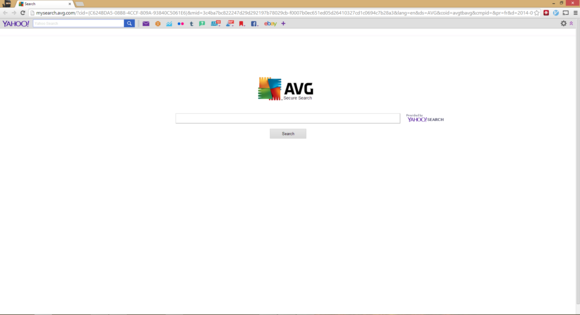
You would assume that in 2014, we'd have place all the net shenanigans of the Nineties and early aughts behind US,however you would be wrong—at least for Windows users. transfer a desktop app like AVG, Skype, or Vuze and these programs can attempt to sneak toolbars onto your system or modification your default home page and browser. Yuck.

If your browser is loaded down with toolbars otherwise you wish to induce back to looking with DuckDuckGoinstead of Bing, here's the way to do battle against these foes on Chrome, Firefox, and net somebody.


Internet Explorer

iemanage

Like several fashionable browsers, net somebody will not let a toolbar run automatically—you ought to manually activate the trespasser. however it will still happen if you are not being attentive.

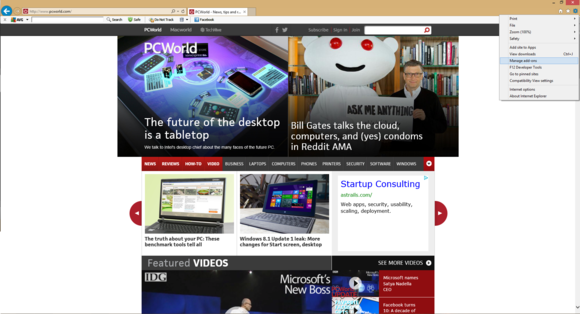
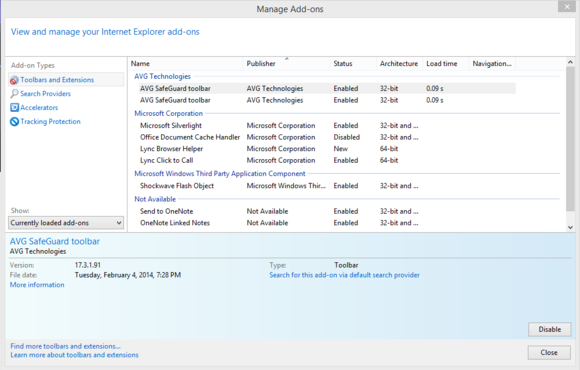
To scrub installed toolbars, click the settings cog in the upper right corner. From the drop-down menu select Manage add-ons. A new window will open and right at the top you'll see all of the toolbars hiding in your browser.

Highlight a toolbar you don't want and then at the bottom of the window, tap the Disable button. Repeat for all toolbars you want to get rid of and you're done.

iemanageaddons

If a toolbar has hijacked your default search provider, stay in the "Manage Add-ons" window and click on Search Providers in the left-hand navigation column. Again, highlight anything you want to get rid of and then click Remove at the bottom of the window.

Finally, if you need to reset your home page, click on the settings cog again, this time selecting Internet Options. In the new window that appears, open the General tab to see a text entry box right at the top. Remove whatever's in there and replace it with your preferred homepage (such as "https://www.google.com"). Then hit Apply, followed by OK.

Firefox
It's even harder to enable a toolbar by accident in Firefox, but mistakes happen. To fix your problem, click on the orange Firefox button in the upper left corner of the browser.

firefox add ons manager


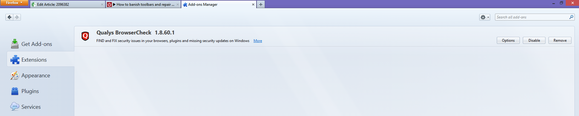
From the drop-down menu select Add-ons. In the tab that opens, click Extensions in the left-hand navigation column. Select the toolbar you want to get rid of and then click the Disable button to the far right of the page. You may be prompted to restart, which you may want to hold off on if you plan to disable multiple toolbars.

firefoxoptions


To reclaim your preferred search engine in Firefox, go back to the main Firefox interface. Click the search provider icon in the search box to the far right of the address bar. Then simply choose a search provider from the drop-down list that appears.

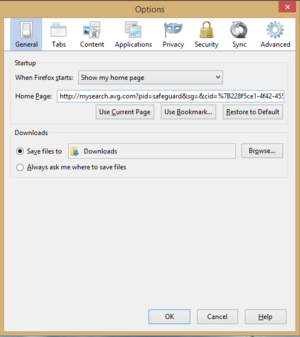
Finally, to return to an old home page, click the orange Firefox button again and select Options > Options. Then in the new window that opens select General. At the top you'll see a spot called "Home Page." Highlight the text entry box next to it, enter your preferred home page's  URL, and click OK.

Chrome
Chrome is even less of a fan of toolbars than other browsers, and Google plans on banning all toolbars from the Chrome Web Store by June.But sometimes we might download and install a toolbar just for the heck of it. Luckily, dumping a toolbar is almost as easy as installing it.

chrometoolbaravg


Start by tapping the menu icon in the upper right corner and select Settings from the drop down menu. In the new tab that opens, select Extensions from the left-hand navigation column. Scroll down until you find the toolbar you're looking for and either uncheck the Enabled checkbox or click the trash icon. Clicking the trash icon rids you of the toolbar for good, while unchecking the Enabled box leaves the toolbar installed but disabled.

Chrome also resists changes to its default search provider, but if you ever need to change it, here's what you do.

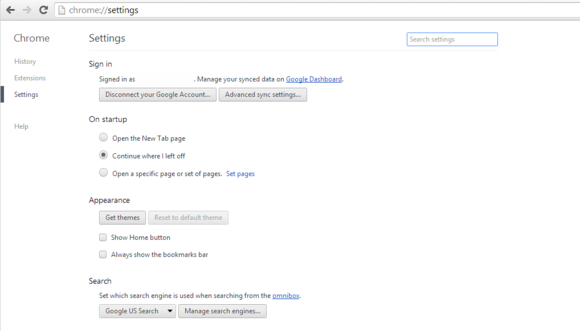
Again go the Chrome settings tab, but this time choose Settings in the left-hand navigation column. Under Search, click on the drop down menu and select your preferred search provider from the list.

chromesettings

To return your home page settings, go up to the top of the same settings menu. Under On startup, click the Set pages link. A new window will open with the pages set to open when you fire up the browser. Hover over any pages you don't want and click the "X" on the far right of the page to nuke unwanted hijackers. You can also choose which page(s) to load on startup by merely adding their URL here.


That's it, you are back to normal!

Toolbars, home page, and computer program changes ar annoying, however they are doing take place from time to time if you are not careful once putting in new software package. Now, however, you recognize a way to obstruct the mental illness once disaster will strike.

For more from the XpertCrewTM team please follow us on Twitter @Techvedic or 

our Facebook Page- 

or  contact us at

U.S. +855-859-0057 (http://www.techvedic.com/  )
U.K. +800-635-0716 (http://www.techvedic.co.uk/ )
CA  1-855-749-5861 (http://www.techvedic.ca/ )
AU  1-800-197-298  (http://www.techvedic.com.au/ )
And yes, we are eagerly waiting for your valuable feedback. Do write us back. We would be more than happy to help you. We are available 24/7.

Thursday, 21 November 2013

Stop the Shockwave Flash Chrome crash

Description


If you are running two versions of Flash at the same time then it is better to turn off one of them. Go through this tutorial to turn it off.

Solution


For this, click Chrome’s address bar typing typechrome://plugins and this takes you to Chrome’s Plug-in page. Look at the listing for Adobe Flash Player. In case, it shows two files then there is problem. Furthermore, you need to click “Details” available near the upper-right corner of the browser window. There will be two .dll files listed. By checking its location, you can see which Chrome is which.
In your App data Chrome folder, Chrome’s built-in version will be there. Its path is:
C:\Users\yourlogon\AppData\Local\Google\Chrome\User Data\PepperFlash\11.9.900.117\pepflashplayer.dll.
In Windows folder, Adobe’s version will be present. Its path is:
C:\Windows\SysWOW64\Macromed\Flash\NPSWF32_11_9_900_117.dll.


Both of them have a “Disable” link. You can disable any one of them. If it will not work for you then uninstall and reinstall Flash. Moreover, you can also try disabling some extensions. For this, go to chrome://settings, and click on “Extensions” on the left.
For more from the XpertCrewTM team, please follow us on Twitter @Techvedic or contact Techvedic’s computer support helpdesk, as per below contact-details:
U.S. +855-859-0057 (http://www.techvedic.com/  )
U.K. +800-635-0716 (http://www.techvedic.co.uk/ )
CA  1-855-749-5861 (http://www.techvedic.ca/> )
AU  1-800-197-298  (http://www.techvedic.com.au/> )
And yes, we are eagerly waiting for your valuable feedback. Do write us back. We would be more than happy to help you. We are available 24/7.

Monday, 11 November 2013

How to quickly recover lost data from your browser?

Description

Suppose you have written a lengthy post in a browser-based blog tool. You have pressed the Backspace key to delete something but by mistake your entire unsaved work gets lost. This is due to the wrong position of your cursor that Chrome interpreted it as “Back.” Sometimes due to lost Internet connectivity or browser crash, you can lose your unsaved data. So, what is the solution?? 

Solution:

browser

For avoiding such situation or recovering your lost form data, you can use Lazarus. This is a browser add-on that makes it easy to recover your lost data. It is available for Chrome, Firefox and Safari. Lazarus saves every word you write into any Web form, blog tool, comment box or any other.
In order to bring back your data, click the little Lazarus symbol given above whatever box you were typing in. After clicking it, choose the bit of text you want to recover. Congrats, it reappears. Actually, Lazarus is very beneficial to save you from accidental deletions.
For more from the XpertCrewTM team, please follow us on Twitter @Techvedic or contact Techvedic’s computer support helpdesk, as per below contact-details: 
U.S. +855-859-0057 (http://www.techvedic.com/ )
U.K. +800-635-0716 (http://www.techvedic.co.uk/ )
CA 1-855-749-5861 (http://www.techvedic.ca/> )
AU 1-800-197-298 (http://www.techvedic.com.au/> )
And yes, we are eagerly waiting for your valuable feedback. Do write us back. We would be more than happy to help you. We are available 24/7.