Find Hidden Programs Running In The Background
After task manager opens you will see various tabs to choose from. In this case the processes tab and the applications tab might help you find hidden programs running in the background on your computer. It is not easy though, as the some small programs show as processes and others as full applications.
As you can see from the screenshot below, on the Processes tab we can see that Google Chrome and Adobe Reader are open but some processes are not so obvious.
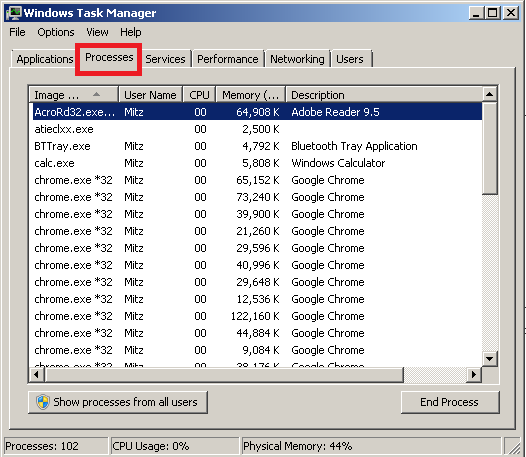
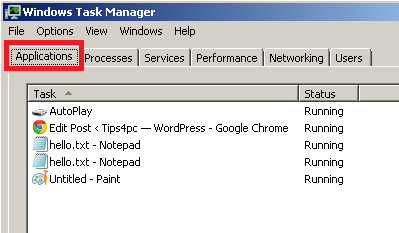
If you go to the Applications tab you will see a list of the programs running. Between these two tabs, you should be able to find what you are looking for. Did you notice that Adobe reader is running in the processes menu but not the applications menu. It is a process running in the background.
Find Hidden Programs Running In The Background – MSCONFIG
Have you ever heard of disabling startup programs as a way to speed up your computer? These are the true hidden programs running in the background on your computer. Some of these programs don’t need to be running in the background and can cause your computer to run slower than usual.
For example in the screenshot below I can see that Nero (a program I rarely use) is starting up with two items that I obviously don’t need everyday. Also allowing something like Shareaza (a file sharing program) to startup is a computer security risk that should not be taken.
How to disable programs from starting when you log into your computer?
Once you have the system configuration window open, go to the startup tab.
Here you will see a list of programs that will start when your computer starts. Simply un-tick the ones you don’t want.This will disable programs from starting.
When you have finished choosing your programs, press apply and then OK.

-------------------------------------------------------------------------------------------------------------------
Hit CTRL ALT DEL on the keyboard to open task manager.
After task manager opens you will see various tabs to choose from. In this case the processes tab and the applications tab might help you find hidden programs running in the background on your computer. It is not easy though, as the some small programs show as processes and others as full applications.
As you can see from the screenshot below, on the Processes tab we can see that Google Chrome and Adobe Reader are open but some processes are not so obvious.
If you go to the Applications tab you will see a list of the programs running. Between these two tabs, you should be able to find what you are looking for. Did you notice that Adobe reader is running in the processes menu but not the applications menu. It is a process running in the background.
Find Hidden Programs Running In The Background – MSCONFIG
Have you ever heard of disabling startup programs as a way to speed up your computer? These are the true hidden programs running in the background on your computer. Some of these programs don’t need to be running in the background and can cause your computer to run slower than usual.
For example in the screenshot below I can see that Nero (a program I rarely use) is starting up with two items that I obviously don’t need everyday. Also allowing something like Shareaza (a file sharing program) to startup is a computer security risk that should not be taken.
How to disable programs from starting when you log into your computer?
Once you have the system configuration window open, go to the startup tab.
Here you will see a list of programs that will start when your computer starts. Simply un-tick the ones you don’t want.This will disable programs from starting.
When you have finished choosing your programs, press apply and then OK.
-------------------------------------------------------------------------------------------------------------------
Techvedic
offers moderate and cloud based support administrations at Present. You
can access your information whenever you require it, anyplace over the Internet
utilizing Mac, PC, iPhone & Android gadgets and any time. Techvedic offers
best of the best cloud support plans for both home and business users.
About Techvedic: http://en.wikipedia.org/wiki/Techvedic
Get in touch with Techvedic on Social
Media:
Techvedic Facebook Page: https://www.facebook.com/techvedic
Techvedic Twitter : https://twitter.com/techvedic
Techvedic Google Plus Page:
https://plus.google.com/+TechvedicInc/posts
Techvedic Youtube:
https://www.youtube.com/user/Techvedic
Techvedic Linkidin Profile:
https://www.linkedin.com/company/techvedic
Visit: Techvedic - Computer Tech Support
Company |
http://www.techvedic.co.uk/
| 0800 016 3909 (UK) |
support@techvedic.com


